
Discover in this tutorial how to apply with code a different color layer to the query loop featured images depending on their post category in WordPress.
The native WordPress block that allows you to display a list of posts, called query loop, is becoming more and more versatile.
You already know that I am passionate about this block, in fact, in this tutorial I review all the options it offers in its user interface.
In addition to all the customization options that I have explained in previous tutorials using PHP, today I bring you one in which you only have to apply a little CSS.
If you display the latest posts on your website homepage or blog and you want them to be visually distinguished by category, you have several possibilities to do so.
For example?
Depending on the category to which the post belongs, it may contain a different color layer over the featured image.
You will understand quickly with an example. This would be the final result:

And this is just an example, you can customize it with the categories and colors you want.
Are you interested? Let’s get started.
Steps to add a different color layer over the featured image depending on the post category
1. Add a query loop block that contains the background block
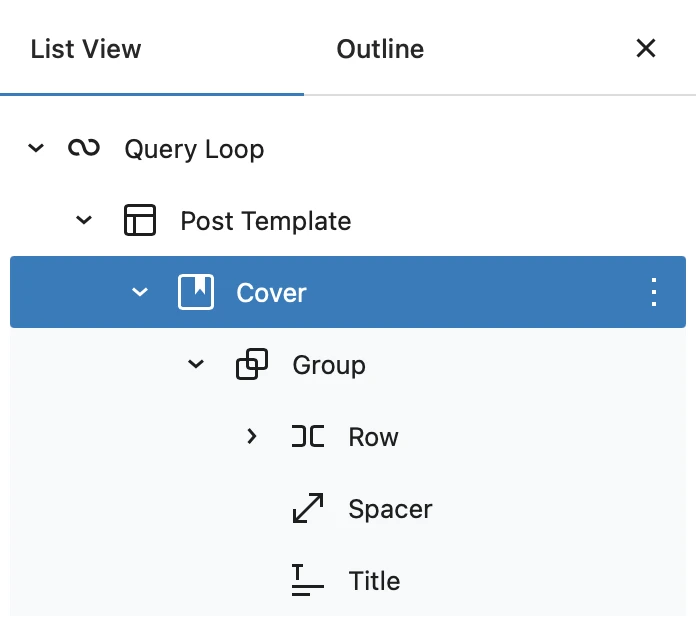
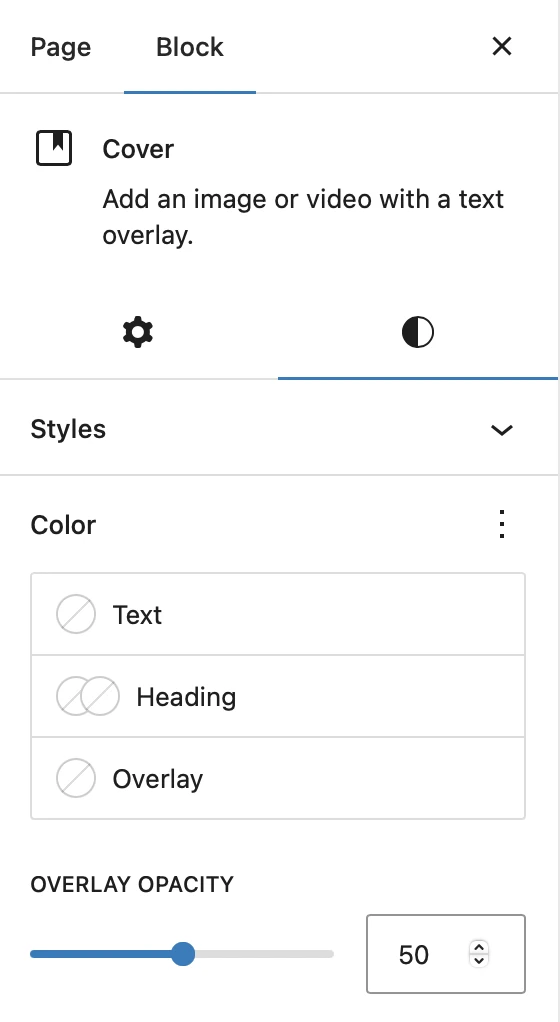
First, choose the query loop block and layout you want. For this example, you are using a background block that displays the featured image with some opacity:
2. Customize the CSS of the overlay
Now insert this block at the end of style.css:
To see this and another 1097 code snippets of this website, login or subscribe here.
.wp-block-query li.category-cat-a .wp-block-cover__background {
    background-color: red !important;
}

.wp-block-query li.category-cat-b .wp-block-cover__background {
    background-color: blue !important;
}

.wp-block-query li.category-cat-c .wp-block-cover__background {
    background-color: green !important;
}By inserting these CSS lines you get the overlay color you want for each category to be applied to the cover block.
In this example you assign 3 different colors to 3 categories:
- Projects: red (CSS class
category-cat-a) - Tutorials: blue color (CSS class
category-cat-b) - News: color green (CSS class
category-cat-c)
You can modify the CSS to use the categories you have defined(category-category-desired) and assign the desired background color(background-color).
Conclusions
Now you know the code to display an overlay with different color depending on the category of the post when you enter the WordPress Query Loop block.
Any questions? I read you in the comments.
And if you want to give me any suggestion for future tutorials, leave it in the contact form. Advantages of being a subscriber. 😉
