
Discover with this tutorial how to display the name of the logged in user anywhere you want in your web thanks to the Block Binding API.
One of the new features of WordPress 6.5 is that it incorporates a new API called Block Binding. This provides the option to display custom fields directly in a block. This is fantastic news as now you don’t need to create a custom block but can use an existing one.
Currently there are only 4 blocks that allow you to do this:
- Paragraph
- Heading
- Button
- Image
This already allows you to do some very interesting things and I’m sure that in future WordPress updates this feature will be extended to more blocks.
This new option opens up a wide range of opportunities.
One of the most popular tutorials in OsomCode is to display the name of the logged in user via a shortcode in WordPress.
If you also want to place personalized messages to your subscriber at certain points of the web, from now on you can do it by inserting that username in a block thanks to the Block Binding.
The final result could be something like this:
Welcome, Nahuai
Or any text you can think of.
Steps to display the user name using Block Binding
1. Add a source that can get the user name using block binding
Add the following code at the end of functions.php or in your functionality plugin:
To see this and another 1097 code snippets of this website, login or subscribe here.
With this code you first add a new data source for the Block Binding and then use the wp_get_current_user() function in combination with get_the_author_meta to get the logged in user’s name.
Now there is only one step left.
2. Insert the block where you want
WordPress 6.5 doesn’t have a visual interface to manage block binding, so you have to do it from the code editor.
To access it go to the 3 dots in the top right corner of the editor and select “Code Editor”:

Pro tip: use the keyboard shortcut: Cmd + Alt + Shift + M to go faster. 😉

Once there, add this HTML:
<!-- wp:paragraph {
	"metadata":{
		"bindings":{
			"content":{
				"source":"osom/user-name",
					"args":{
						"key":"name"
					}
			}
		}
	}
} -->
<p></p>
<!-- /wp:paragraph -->
In this case you use a paragraph block to get the username metadata through the Block Binding API.
Once you enter it you can go back to visual editing of the content. You will see something like this:

The advantage of having the username in a block is that you can layout it as you like.
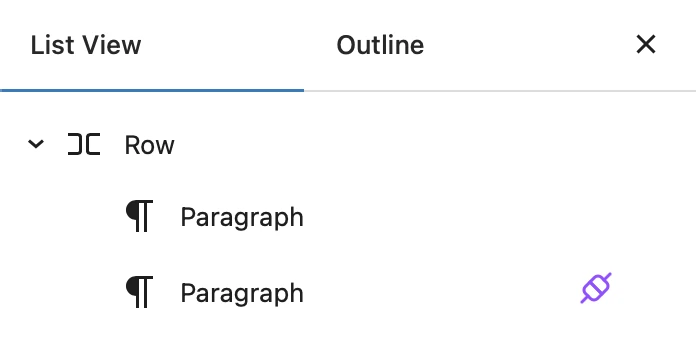
For example, if you want to add text before (or after) you can use the row block (a variation of the group block).
For example, to get this result:
Welcome, Nahuai
You can use this structure:

Conclusions
You can see how easy it is to display the name of a logged in user at any point of the web thanks to the ability to enter it directly in a paragraph block.
If you have any question, please leave it in the comments. And if you want to give me a suggestion for future snippets, please send it through the contact form.
Benefits of being a subscriber. 🙂
